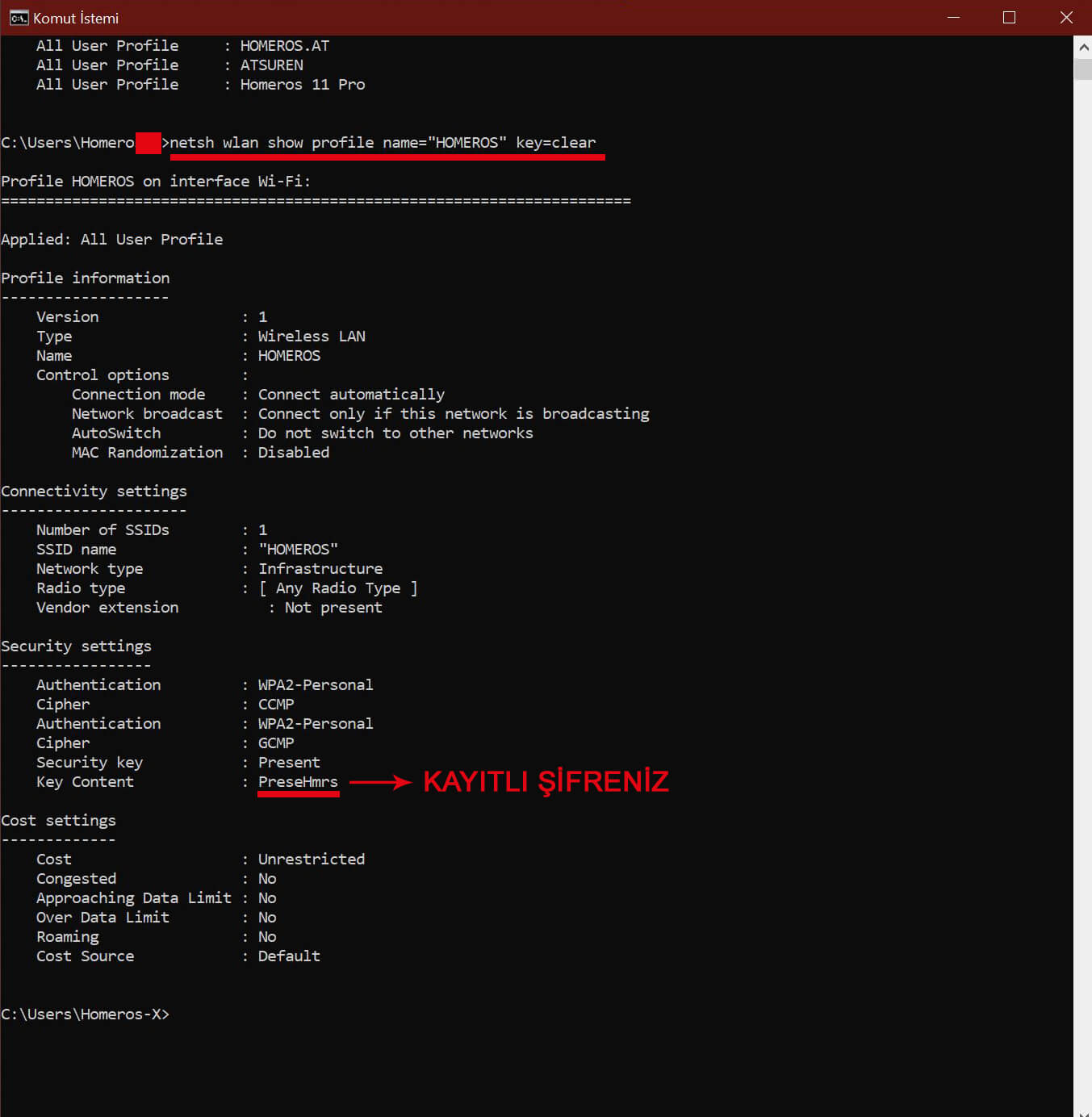
In Windows 10, you can use the following method to find passwords for Wi-Fi networks you previously connected to.
First open the command prompt and display the list of saved Wi-Fi networks.
netsh wlan show profiles
(This command lists the names of all Wi-Fi networks saved on your computer, as shown below.)
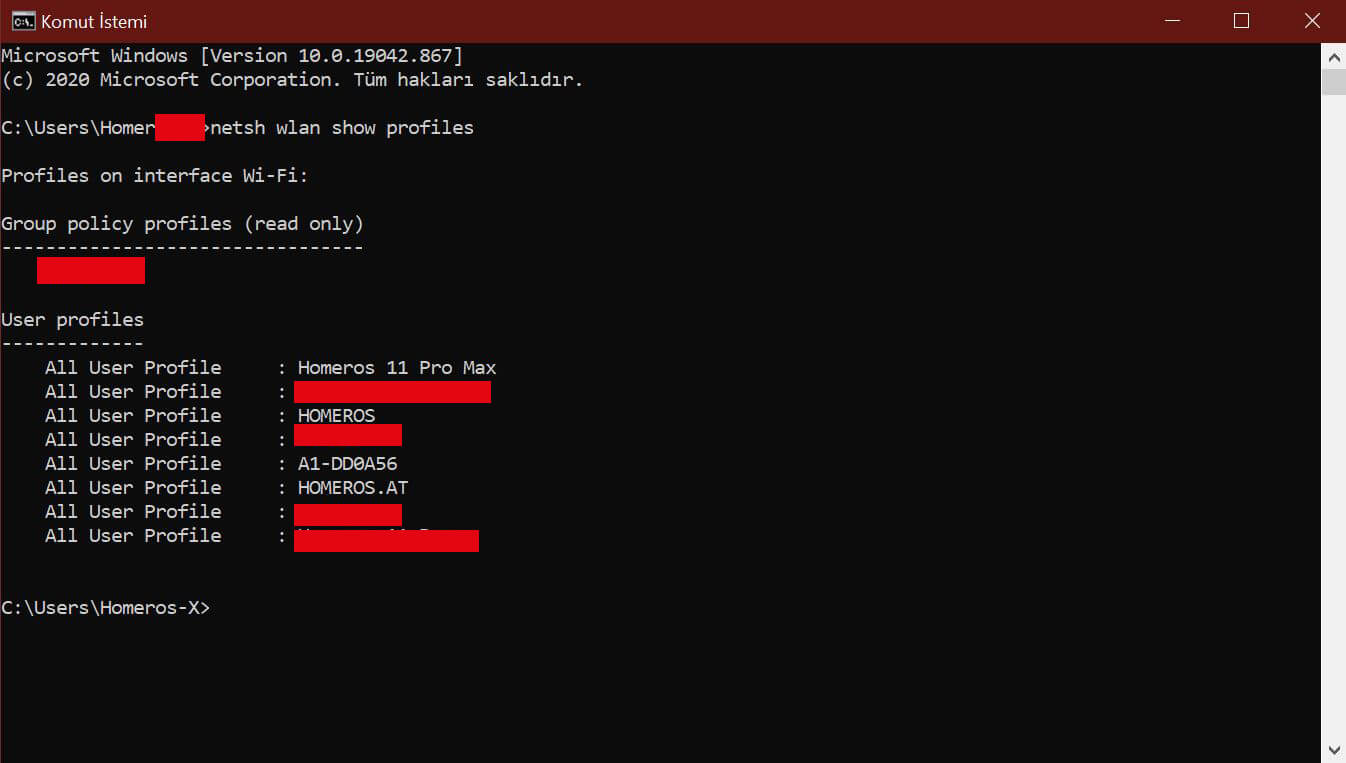
You will see the networks you previously connected to with saved passwords. Edit the next command for the network whose password you want to view and enter it in CMD.
For example, I want to view the password for HOMEROS, so I use this command. Replace HOMEROS with the name of your own network to view its saved Wi-Fi password.
netsh wlan show profile name=”HOMEROS” key=clear(Edit this command and enter it in CMD to display the password as shown below.)