
We explain how to retrieve your product key on Windows Server 2019 and other versions using the PowerShell Get-ProductKey function in a PS1 file.
You can also retrieve product keys using the computer names of machines on your local network.
PowerShell's Get-ProductKey function can retrieve keys from local-network or remote computers.
Step 1:
First copy the Get-ProductKey.ps1 PowerShell script to your C: drive, where Windows is installed. The script is no longer distributed on our website.
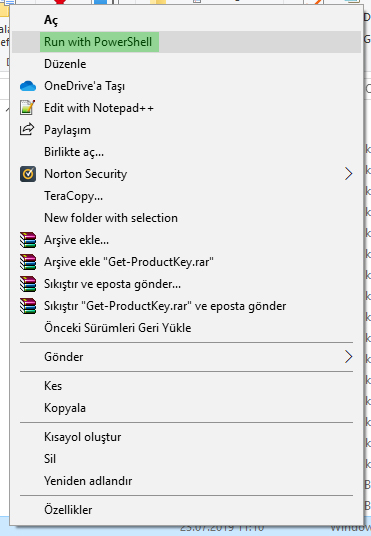
Step 2:
Right-click the copied file and open it with PowerShell. A screen like the following will appear:
Enter the following commands here or in the command prompt:
..\Get-ProductKey.ps1
Get-ProductKey Computername Homeros (your computer's name)
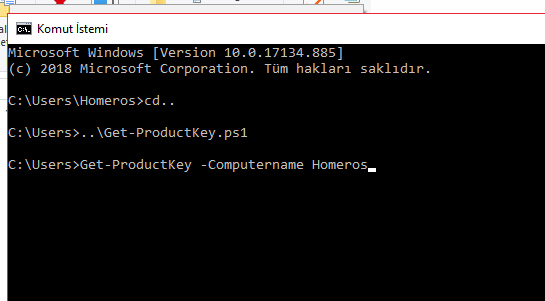
These commands display the product key information for your current Windows installation.
Supported Windows Versions:
Windows Server 2019 Yes
Windows Server 2016 Yes
Windows Server 2012 R2 Yes
Windows Server 2012 Yes
Windows Server 2008 R2 Yes
Windows Server 2008 Yes
Windows Server 2003 Yes
Windows 8 Yes
Windows 7 Yes
Windows Vista Yes
Windows XP Yes


